If you've ever needed to send a resume, contract, or report that looks exactly the same on every device, you already know why PDF is the format of choice. Word documents are great for editing, but they can shift fonts, spacing, and formatting depending on the software or device opening them. Converting a Word file to PDF locks in the layout, making it the safer choice for sharing, printing, and archiving. The good news is you don't need to buy expensive software to do it — there are plenty of free online tools that can Convert Word to PDF in just a few clicks.
This guide walks through why you'd want to convert, the best free online tools available, a step-by-step process, and tips to make sure your converted file looks exactly the way you intended.
Why Convert Word to PDF?
Before diving into the "how," it helps to understand the "why." Here are the most common reasons people convert Word documents to PDF:
- Consistent formatting – PDFs display the same way on every device and operating system, so your carefully formatted resume or report won't shift out of place.
- Professionalism – PDFs feel more polished and final, which is why job applications, invoices, and official documents are almost always shared in this format.
- Security – PDFs are harder to edit accidentally (or intentionally) than Word files, and many tools let you add passwords or restrict editing.
- Smaller, more portable files – PDFs often compress more efficiently, especially when they include images.
- Universal compatibility – Almost every device, browser, and printer can open a PDF without needing Microsoft Word installed.
Best Free Online Tools for Word to PDF Conversion
There's no shortage of online converters, but these stand out for being genuinely free, fast, and reliable for everyday use:
Tool | Highlights | Account Needed? |
Microsoft Word Online | Built into Office.com; "Save As" or "Export" directly to PDF with perfect formatting fidelity | Yes (free Microsoft account) |
Google Docs | Upload or paste your Word content, then use "Download > PDF Document" | Yes (free Google account) |
Smallpdf | Clean interface, drag-and-drop, also offers compression and editing tools | No (limited free uses without account) |
iLovePDF | Simple converter with batch processing and additional PDF tools | No (limited free uses without account) |
Adobe Acrobat Online | Trusted PDF authority, reliable formatting, integrates with other Adobe tools | No (limited free uses without account) |
Sejda | Good for larger files, generous free daily limits | No |
PDF2Go | No sign-up required, supports multiple file formats beyond Word | No |
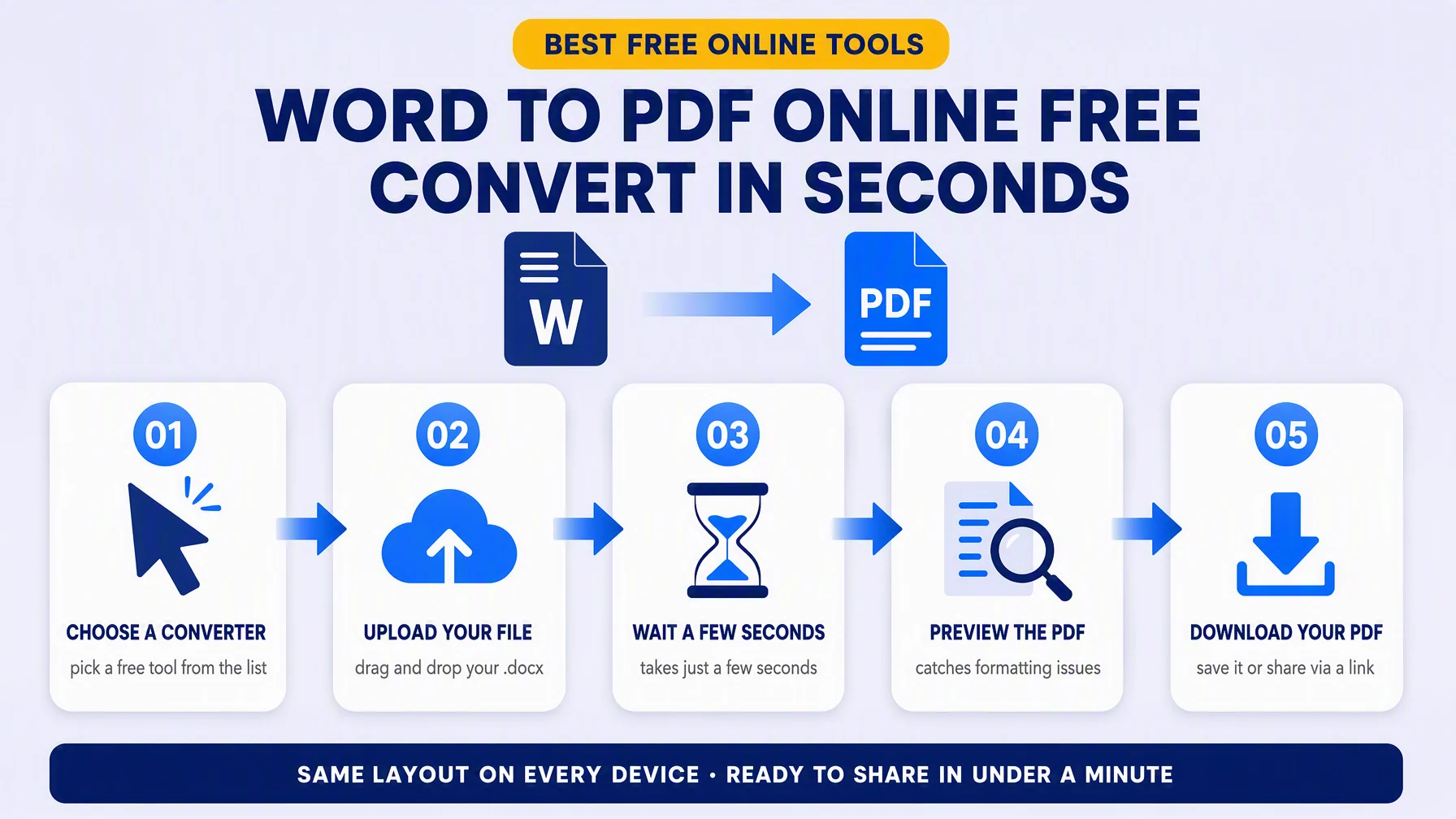
Most of these tools work the same basic way: upload your .doc or .docx file, wait a few seconds for conversion, and download the resulting PDF.
Step-by-Step: Converting Word to PDF Online
Here's a general process that applies to nearly all free online converters:
- Choose a converter – Pick a tool from the list above based on whether you're okay creating an account or prefer a no-signup option.
- Upload your file – Drag and drop your .docx or .doc file, or click "browse" to select it from your device.
- Wait for processing – Conversion usually takes just a few seconds, though larger files with lots of images may take longer.
- Preview if possible – Some tools let you preview the PDF before downloading, which is useful for catching formatting issues.
- Download your PDF – Save the converted file to your device, cloud storage, or directly share it via a link if the tool offers that option.
- Delete uploaded files (optional but recommended) – Reputable tools automatically delete files from their servers after a set time, but you can also manually delete them if the option is available, especially for sensitive documents.
Tips for a Clean Conversion
Even though online converters are generally reliable, a few precautions can save you from formatting headaches:
- Use standard fonts. Uncommon or custom fonts may not render correctly if the converter doesn't have access to them — stick to common fonts like Arial, Calibri, or Times New Roman for best results.
- Check page breaks and margins. Complex layouts with tables, columns, or embedded objects sometimes shift slightly during conversion, so it's worth reviewing the final PDF before sending it anywhere important.
- Compress images beforehand. If your Word document has large images, compressing them first can help keep your PDF file size manageable.
- Test hyperlinks. Most converters preserve clickable links, but it's good practice to verify they still work in the final PDF.
- Keep a backup of your original Word file. Once converted, PDFs aren't meant to be edited easily, so hang on to the source document in case you need to make changes later.
Is It Safe to Use Free Online Converters?
For everyday documents — resumes, reports, school assignments — free online converters are generally safe and convenient. However, if you're working with sensitive or confidential material (legal contracts, financial statements, medical records), consider these precautions:
- Look for tools that explicitly state they delete uploaded files after conversion (usually within an hour or two).
- Check whether the site uses HTTPS encryption for uploads.
- Read the tool's privacy policy if you're unsure how your data is handled.
- For highly sensitive files, consider using offline conversion instead (see below), which never sends your document over the internet.
When to Use Offline Conversion Instead
Online tools are great for speed and convenience, but if you frequently convert documents or work with sensitive files, it may be worth using offline methods:
- Microsoft Word's built-in export – Open your document in Word, go to File > Save As (or Export), and choose PDF as the format. This works entirely offline and preserves formatting perfectly.
- Free desktop tools – Programs like LibreOffice (free and open-source) can open Word files and export them as PDFs without needing an internet connection.
Frequently Asked Questions
Is converting Word to PDF online really free? Yes, most of the tools listed above offer free conversion, though some limit the number of conversions per day or file size for non-account users.
Will my formatting stay exactly the same? In most cases, yes — especially for simple documents. Complex layouts with unusual fonts, embedded objects, or heavy formatting may need a quick review after conversion.
Can I convert multiple Word files to PDF at once? Many tools, including iLovePDF and Smallpdf, support batch conversion, letting you upload several files and convert them all at once.
Do I need to install any software? No — that's the main advantage of online converters. Everything happens in your browser, so there's nothing to download or install.
Can I convert a PDF back to Word later? Yes, most of these same tools (and others) offer PDF-to-Word conversion as well, in case you need to edit the content again in the future.
Final Thoughts
Converting Word documents to PDF online is quick, free, and doesn't require any technical expertise. Whether you're finalizing a resume, sending a business proposal, or archiving a report, a few clicks are all it takes to get a clean, universally readable PDF. Just remember to double-check formatting on anything important, and consider offline tools if you're working with sensitive information. With the right tool for your needs, you'll have a polished PDF ready to share in under a minute.