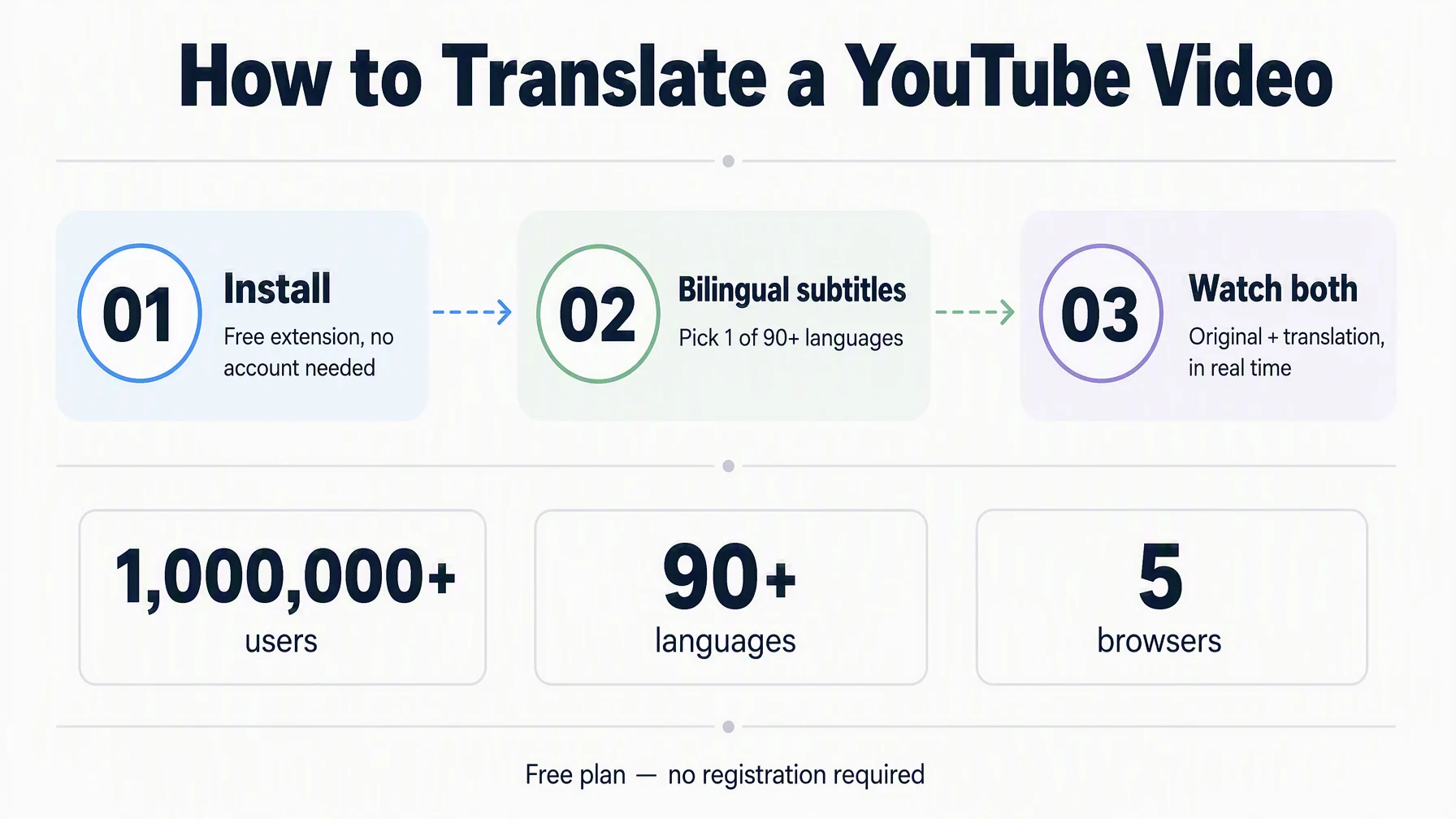
You can translate a YouTube video in real time without leaving the page: Glarity, a free browser extension trusted by 1,000,000+ users, shows the original subtitles and their translation together as you watch — in 90 languages. Here is the step-by-step way to set it up, plus how the same translator works on web pages, PDFs, and images.
What bilingual video translation looks like
Most subtitle tools make you choose: keep the original audio and subtitle, or swap in a rough auto-translation. Glarity's side-by-side (mirror) translation removes that trade-off — the original and the translated text are displayed together, so nothing is lost when a machine or an AI generates the translation.
This is the core of the feature: the way you normally need to switch language, the two languages now appear in parallel below the video.
Step 1 — Install Glarity in your browser
- Open Glarity's Chrome Web Store listing and install the extension.
- Add the extension to Chrome, Edge, Safari, Firefox, or Opera — the same setup works in each.
- No account is needed to start translating — Glarity's translation runs free on standard engines.
(For the full picture of the feature, see the Side-by-Side Translation product page.)
On Apple devices, the Glarity Safari extension is also available from the App Store, and macOS Safari is supported. Once installed, the extension stays in the browser toolbar, read to translate wherever you watch or read.
Step 2 — Turn on bilingual subtitles for a YouTube video
- Open the YouTube video you want to watch.
- Turn on Glarity's bilingual subtitle mode.
- Pick your target language — Glarity covers 90+ languages.
- The original subtitle and your language appear together, in real time, synchronized with the video.
Toggle between original and translated while the video keeps playing. For language learners, this is the setup that actually works: keep the original audio and read the subtitles in a language you are learning — the combination of original audio and subtitles in your native language naturally enhances listening, speaking, reading, and writing. (If your only goal is to understand a video, remember Glarity also generates summaries and Q&A from the transcript — here is how Glarity summarizes YouTube videos.)
The same translator works on any web page
Video subtitles are only one part of Glarity's mirror translation. The same two-language display works wherever you read:
Where | What Glarity does |
|---|---|
Web pages | Right-click any page and choose "toggle translate page" for full-page immersive translation — translated text appears directly below the original, section by section |
Text on any page | Select a sentence and get a fast translation of the whole sentence, not just a single word |
Images / screenshots | Right-click an image to translate or extract its text |
PDF documents | Select a paragraph and translate just the part you need |
The value is the same everywhere: you never lose the original text, and you never have to open a browser extension panel or a separate window to compare.
Free engines vs. AI translation engines
Glarity offers two types of engines behind the same interface:
Engine | What it means | Cost |
|---|---|---|
Google Translate, Microsoft Translate | Standard machine translation — fast, good enough for casual reading | Free; no registration or credit card required |
LLM-AI engines (OpenAI/ChatGPT, Gemini, Claude 3.5, GPT-4o) | AI-written translations that read naturally, keep tone, and handle longer context | Available with the relevant model plan |
For academic or specialized terminology, the LLM-AI engine also accepts a field mode: you tell it the role and domain of the translation — say, legal, medical or software — and it uses the terms of that field instead of generic phrasing. For everyday video watching, the free engines are the first place to start.
Who gets the most from bilingual subtitles
- Language learners – original subtitles plus a translated version supports listening, speaking, reading and writing at the same time, which is why bilingual mode is built for language learning, not just for understanding.
- Researchers and academics – translated foreign materials and specialized terminology with the field mode.
- International professionals – quick, natural translations for documents, emails, and news in another language.
- Educators – multilingual subtitles make a lecture or tutorial watchable for a mixed-language class.
FAQ
Is Glarity's YouTube translation free? Yes — the extension translates video subtitles, web pages, and PDFs for free using standard machine translation engines (Google Translate, Microsoft Translate), with no registration or credit card. AI-powered engines are available on the corresponding model plan.
How many languages does it support? Over 90 languages for translations, including real-time bilingual subtitles on YouTube.
Which browsers are supported? Chrome, Edge, Safari, Firefox, and Opera on desktop, plus iOS Safari via the App Store.
Do I have to choose between the original subtitles and the translation? No. Glarity supports bilingual subtitle mode, which shows both — you can follow the original while reading a translation, which is ideal for language learning.
Can it translate anything besides YouTube videos? Yes — full web pages, selected text, images and screenshots, and PDFs.
By the Glarity Editorial Team. The Glarity Editorial Team writes about AI search, video summarization, and getting more from your browser.
Glarity is a free browser extension for AI search and YouTube summarization — try it at glarity.app.